Creating and recurrence
Create one rule, then let it produce the right alerts.
A reminder keeps the title, schedule, and settings. An alert is one concrete notification DKReminder shows at a scheduled time. Changing one alert is not the same as changing the whole reminder rule.
Choose how to start
Choose + to create a reminder
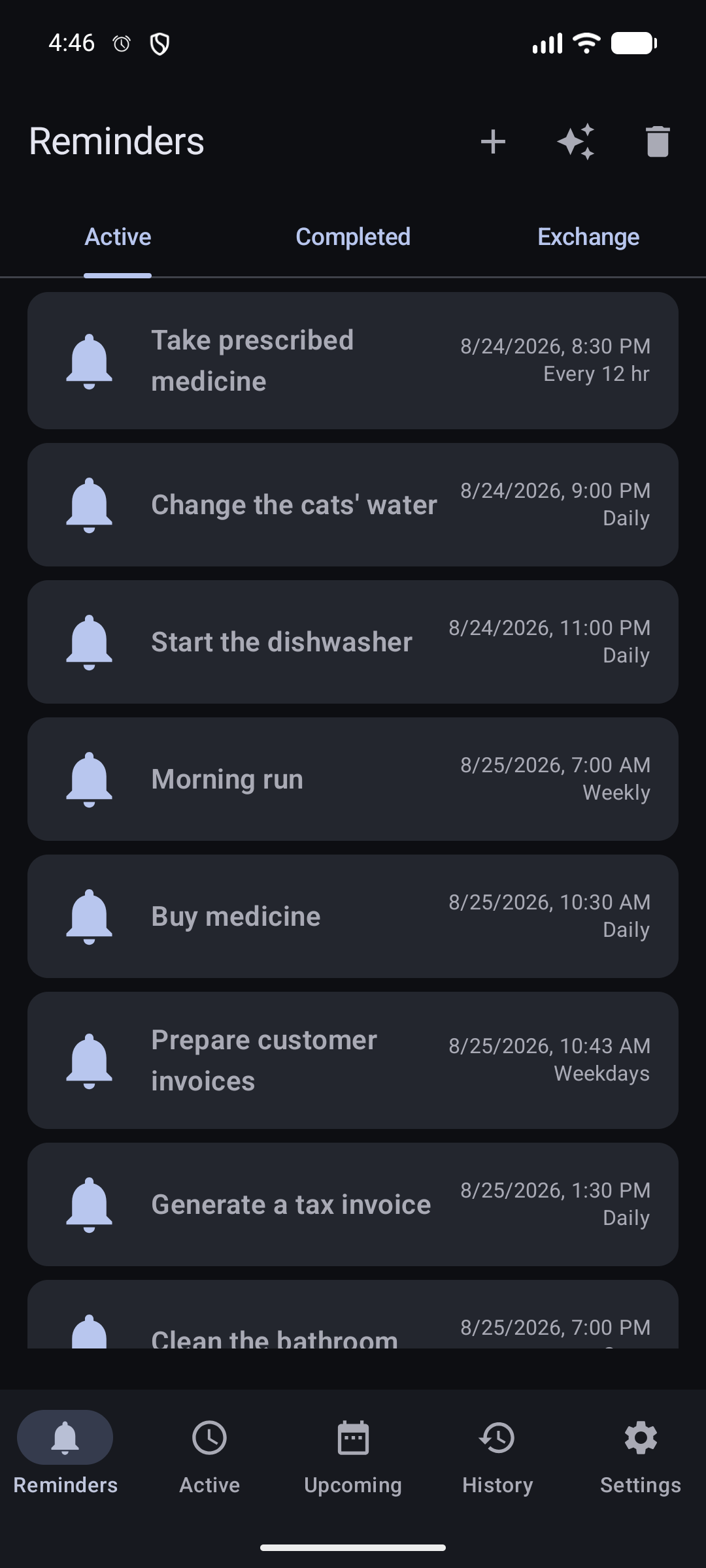
Depending on your saved preference and Pro access, DKReminder opens either the full editor or step-by-step creation. Both save the same reminder fields.
Best when a catalog entry already matches the task. Open it, then review the title, time, and schedule before saving.
Best when you want to see only the fields relevant to the current schedule.
Best when you know the exact recurrence type and want every relevant setting on one form.
During first-run setup, creates a one-time draft for five minutes from the current time and shows the actual selected time before save.
One continuous form
Walk through the full editor
The example below creates a weekly Saturday reminder for preparing a weekend hike. Choose a step to follow the fields in the same order in which they appear in the editor.
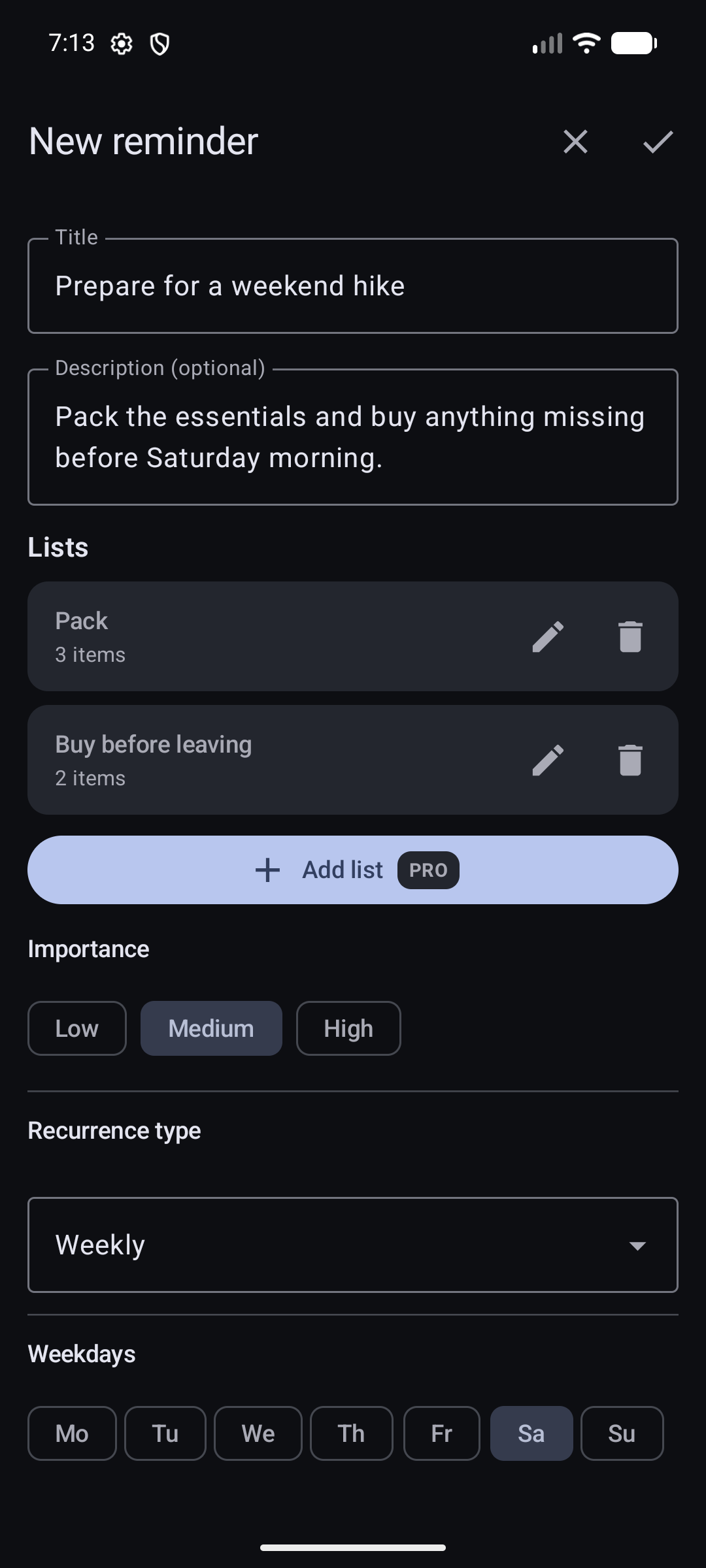
Describe the reminder and set its rhythm
- Title and description explain what to do and add any context you will need when the alert appears.
- Lists keep related items checkable. The first list is available to everyone; creating additional lists is a Pro feature.
- Importance can also decide the alert mode when Based on importance is selected later.
- Recurrence type defines the schedule. Here, Weekly and Saturday mean one alert every Saturday.
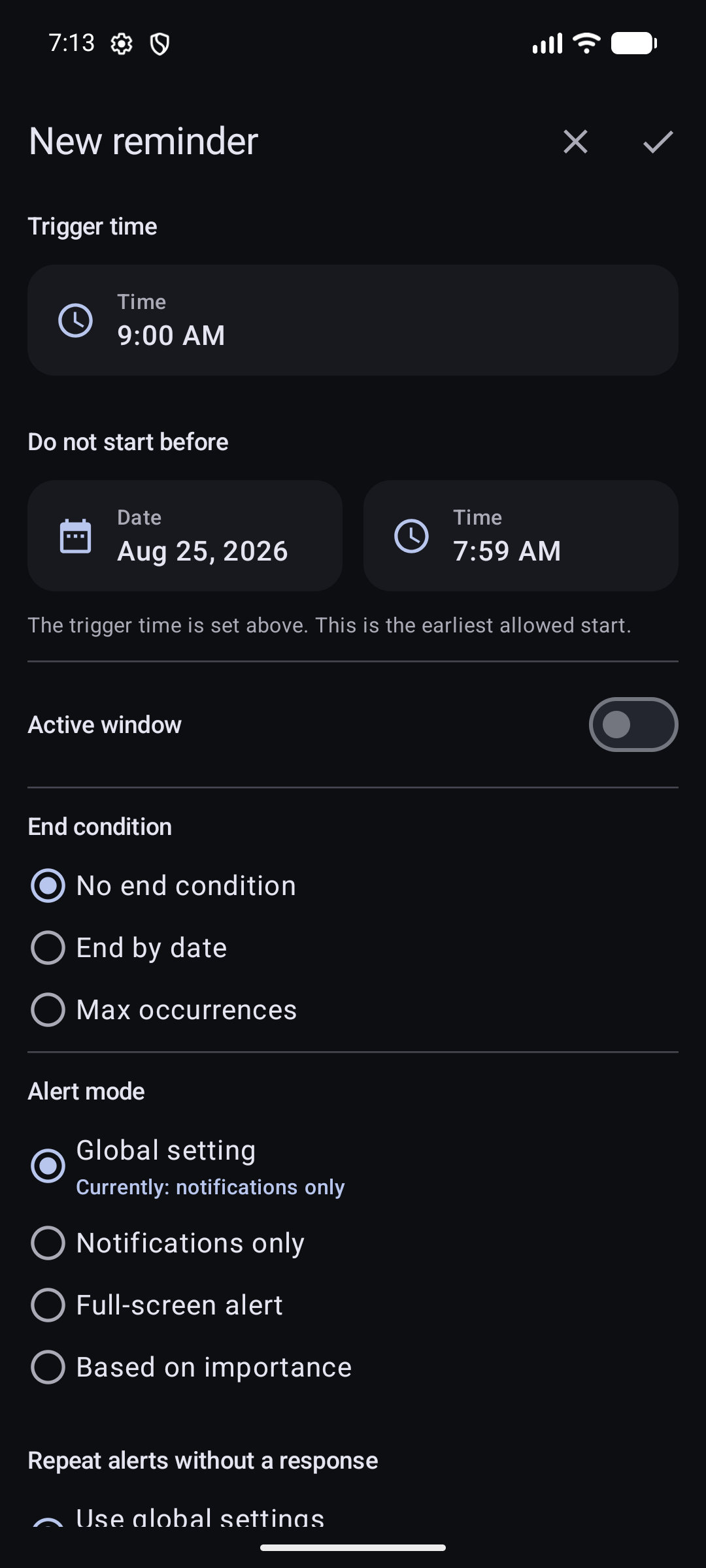
Choose when and how the schedule may run
- Trigger time is the time of day for each scheduled alert.
- Do not start before sets the earliest allowed date and time for the schedule.
- Active window can keep frequent reminders inside part of the day. Learn how the window works.
- End condition can leave the rule open-ended, stop it on a date, or stop it after a number of occurrences.
- Alert mode chooses notifications, full-screen alerts, or behavior based on importance. Full-screen display also depends on Android access.
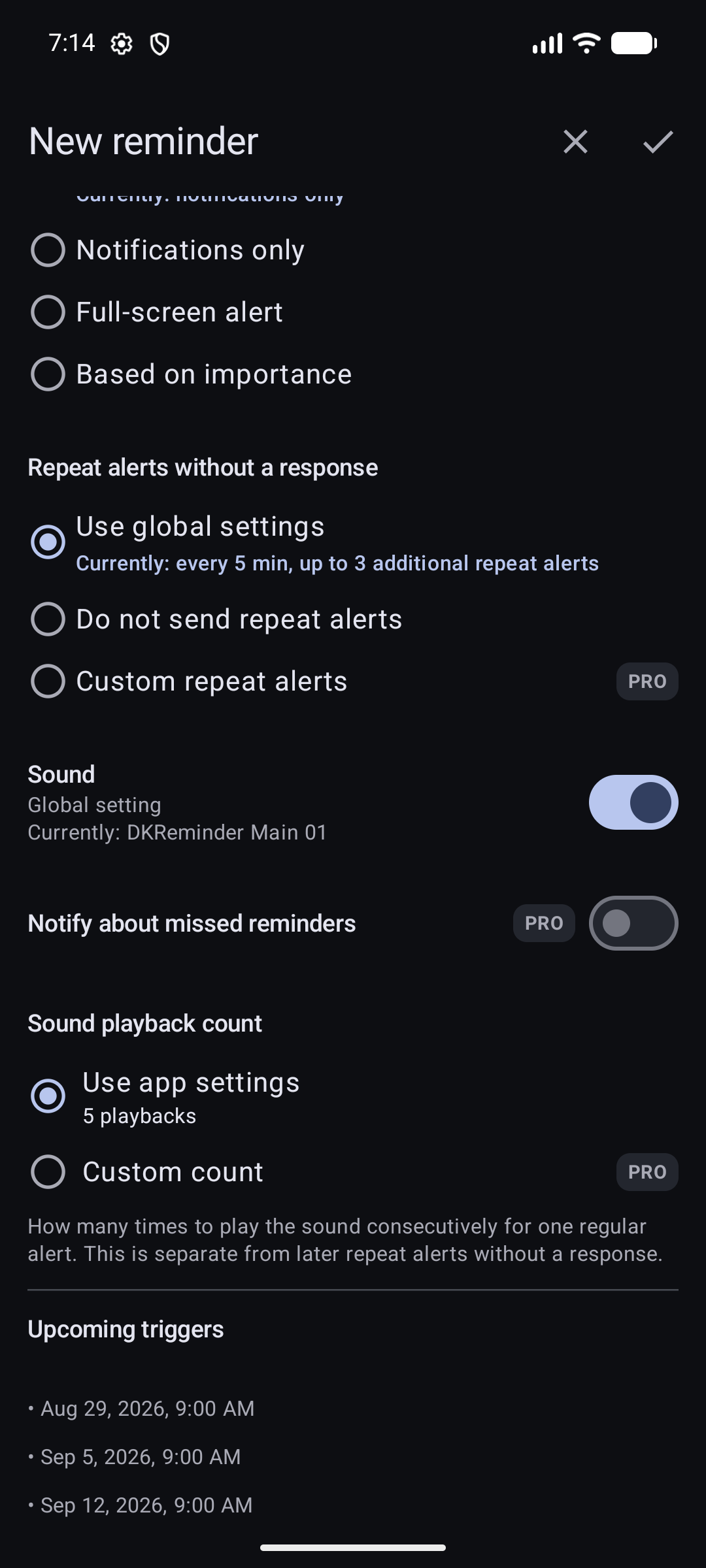
Decide how an unanswered alert behaves
- Repeat alerts without a response can use the app-wide setting, stay off, or use a custom Pro rule. These are later alerts, not repeated sound playback. Read about repeated alerts.
- Sound can follow the global setting or use a reminder-specific choice.
- Notify about missed reminders is an optional Pro notification after a missed alert.
- Sound playback count controls consecutive playback during one regular alert.
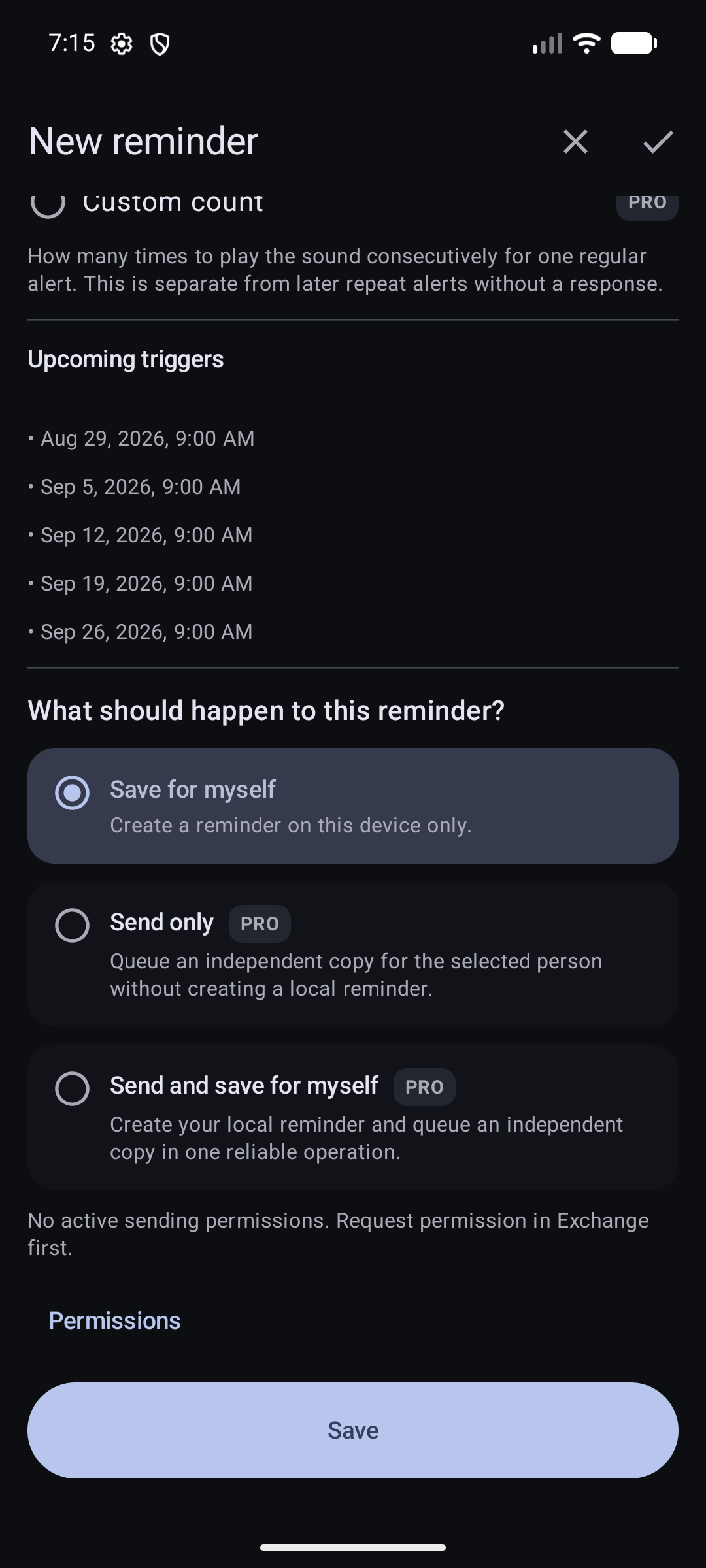
- Upcoming triggers lets you verify the next calculated dates before saving.
Review the result, then save
- Check Upcoming triggers one last time. If the dates are wrong, return to the schedule fields instead of saving.
- Save for myself creates the reminder on this device.
- Send only and Send and save for myself are Pro Exchange actions. They become usable after the recipient gives you sending permission. Learn about sending reminders.
- Save applies the selected outcome. Nothing is created until you press it.
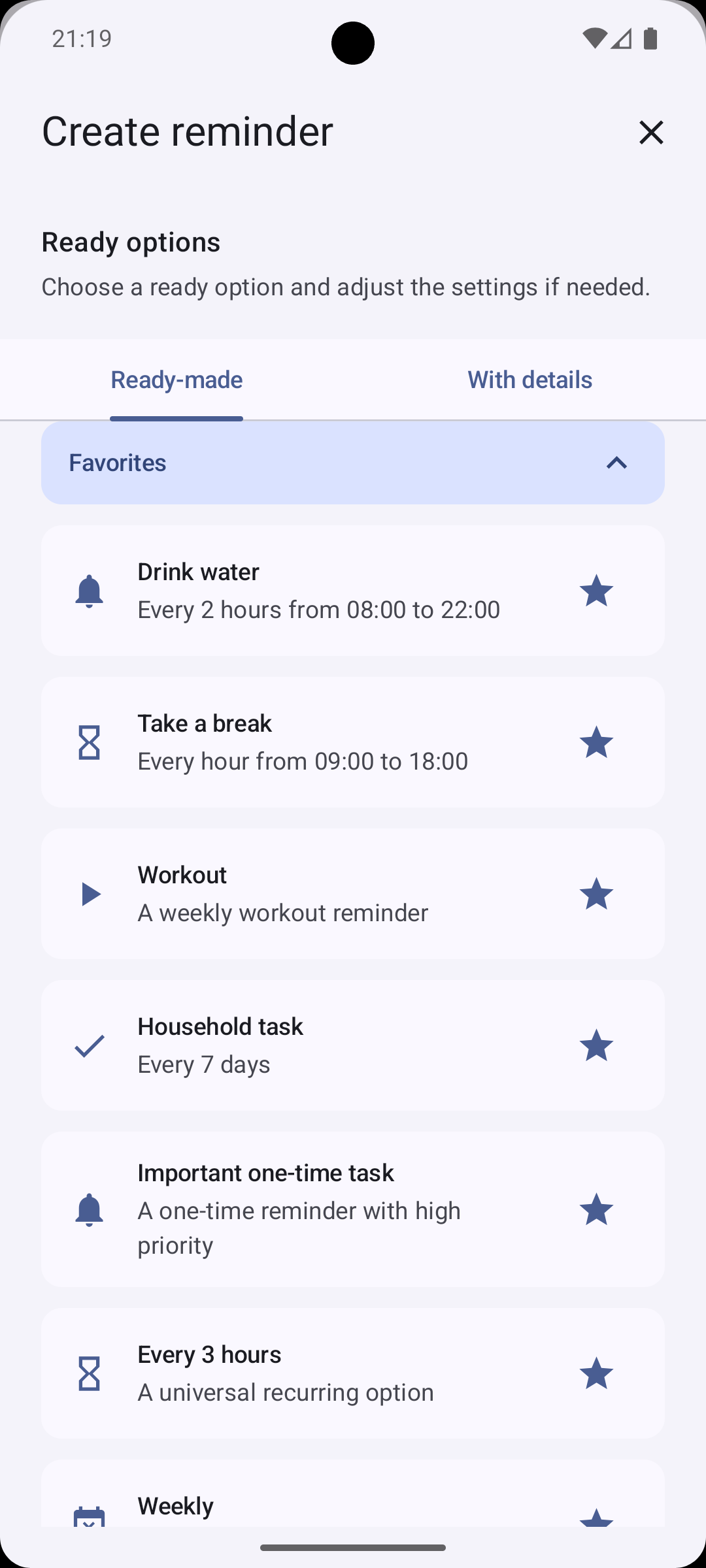
Start from a ready-made option
The catalog is a shortcut into the same editor, not a separate reminder type. Choose a close match, then review its title, time, and schedule.
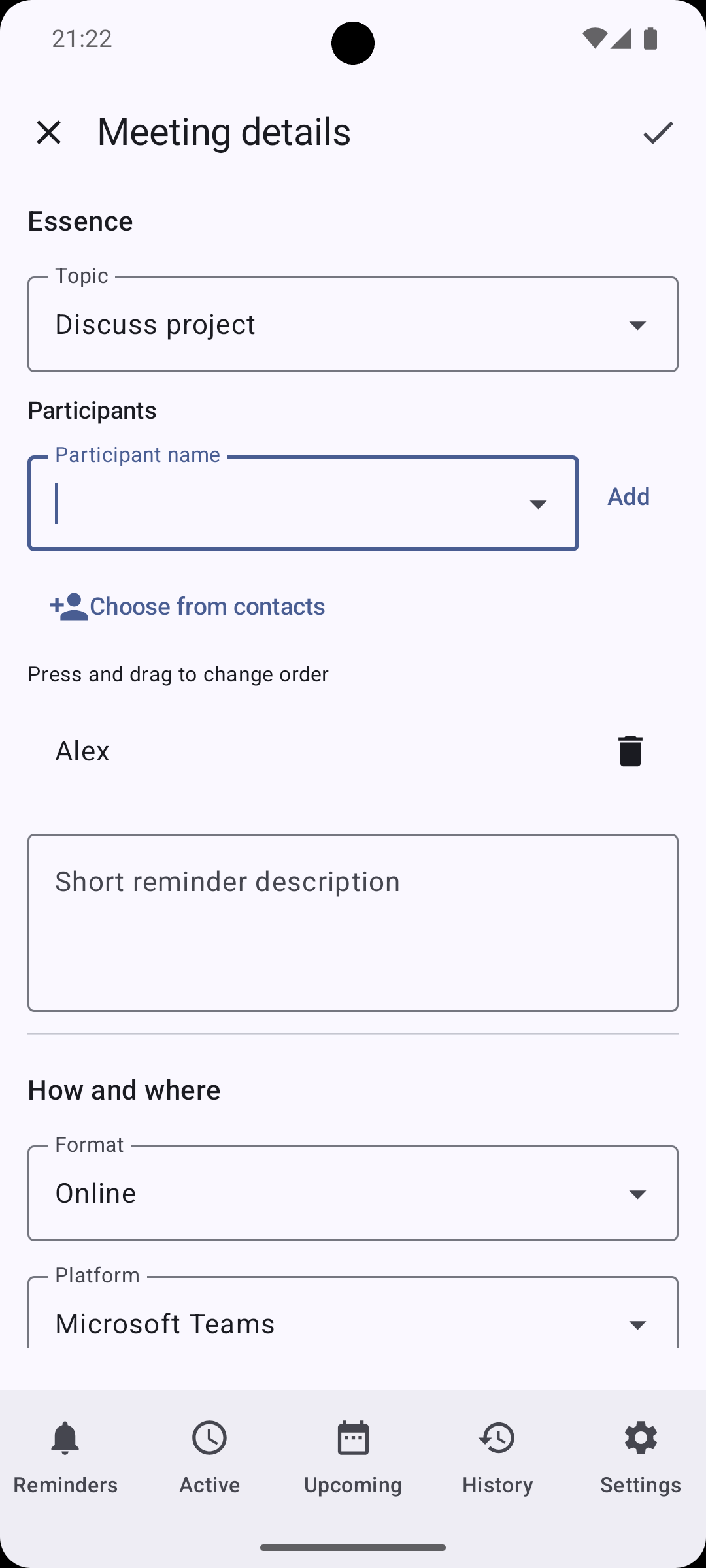
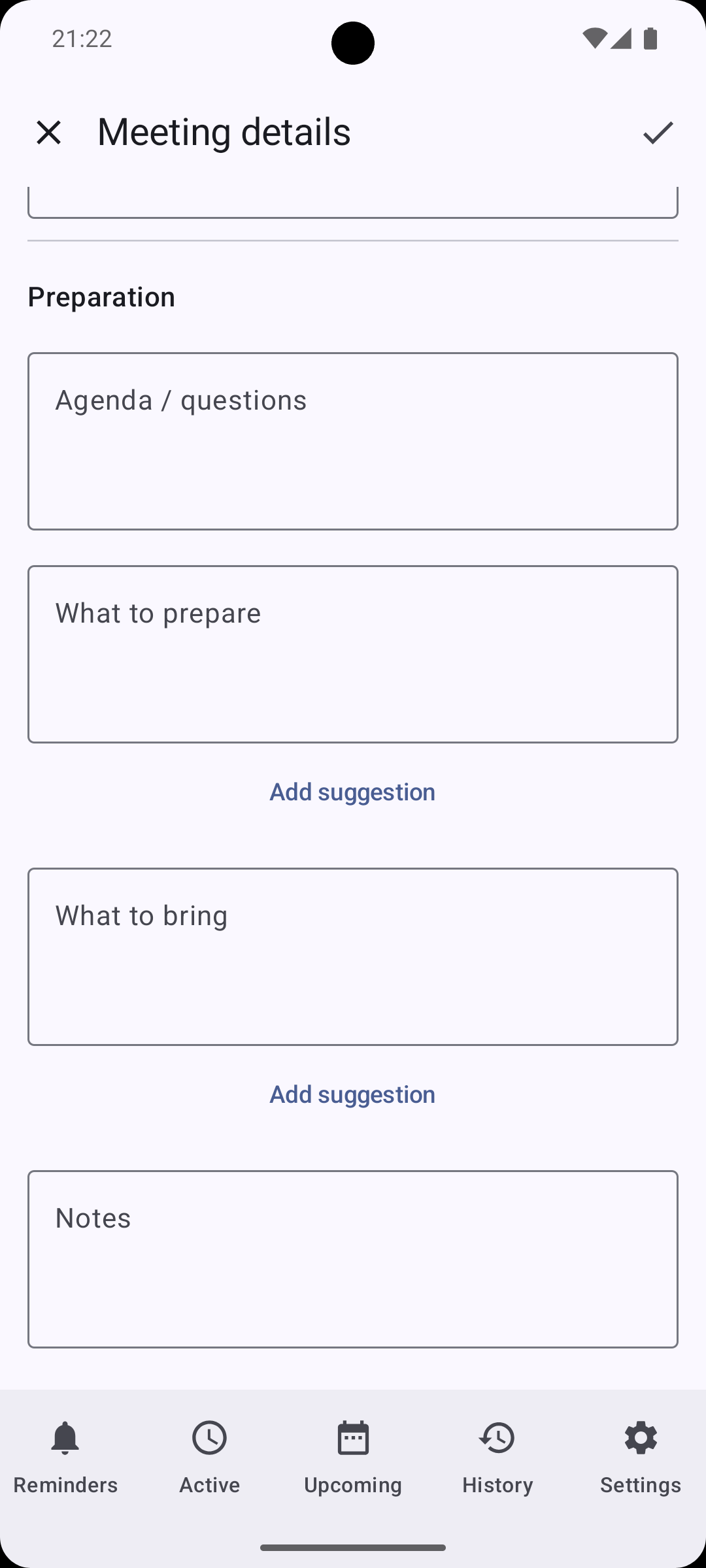
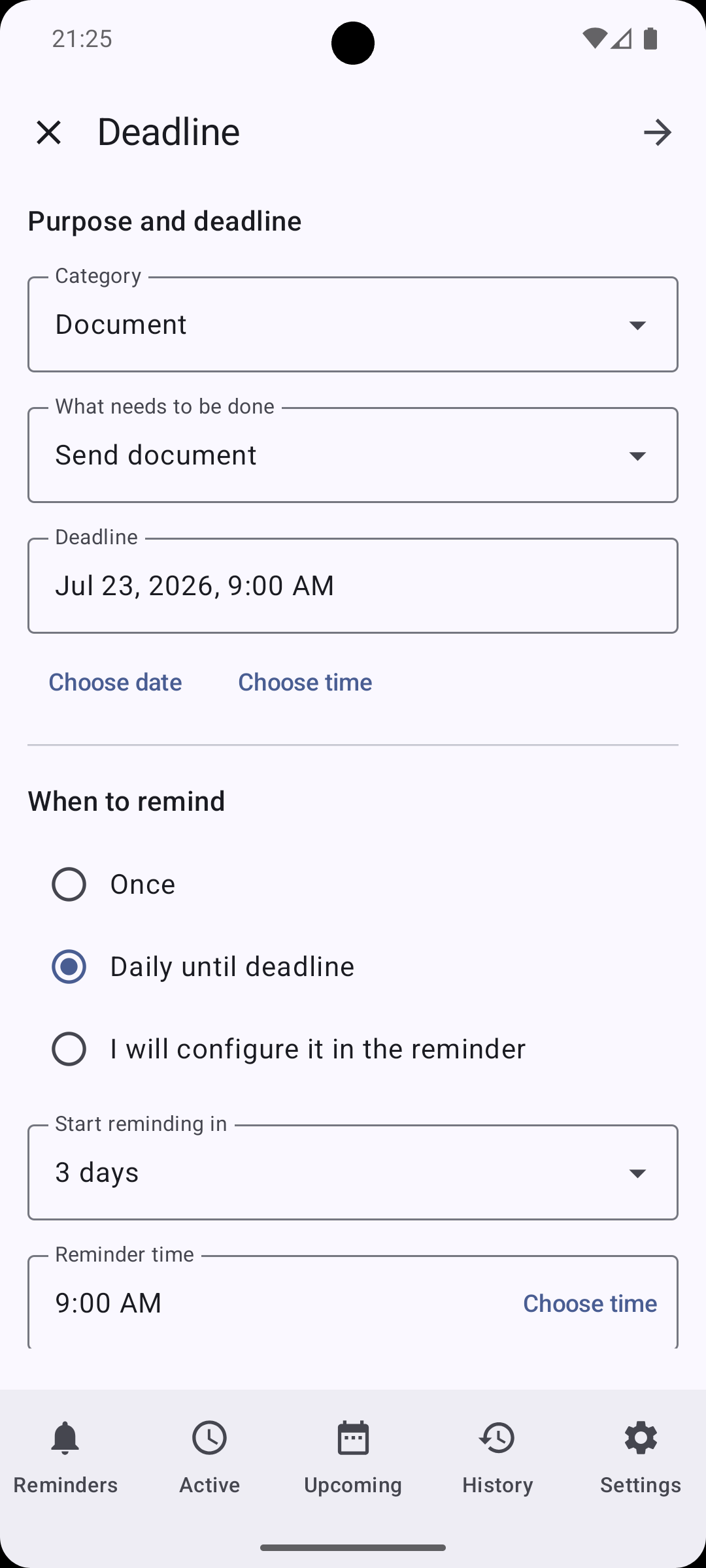
Use the Meeting or Deadline scenario · Pro
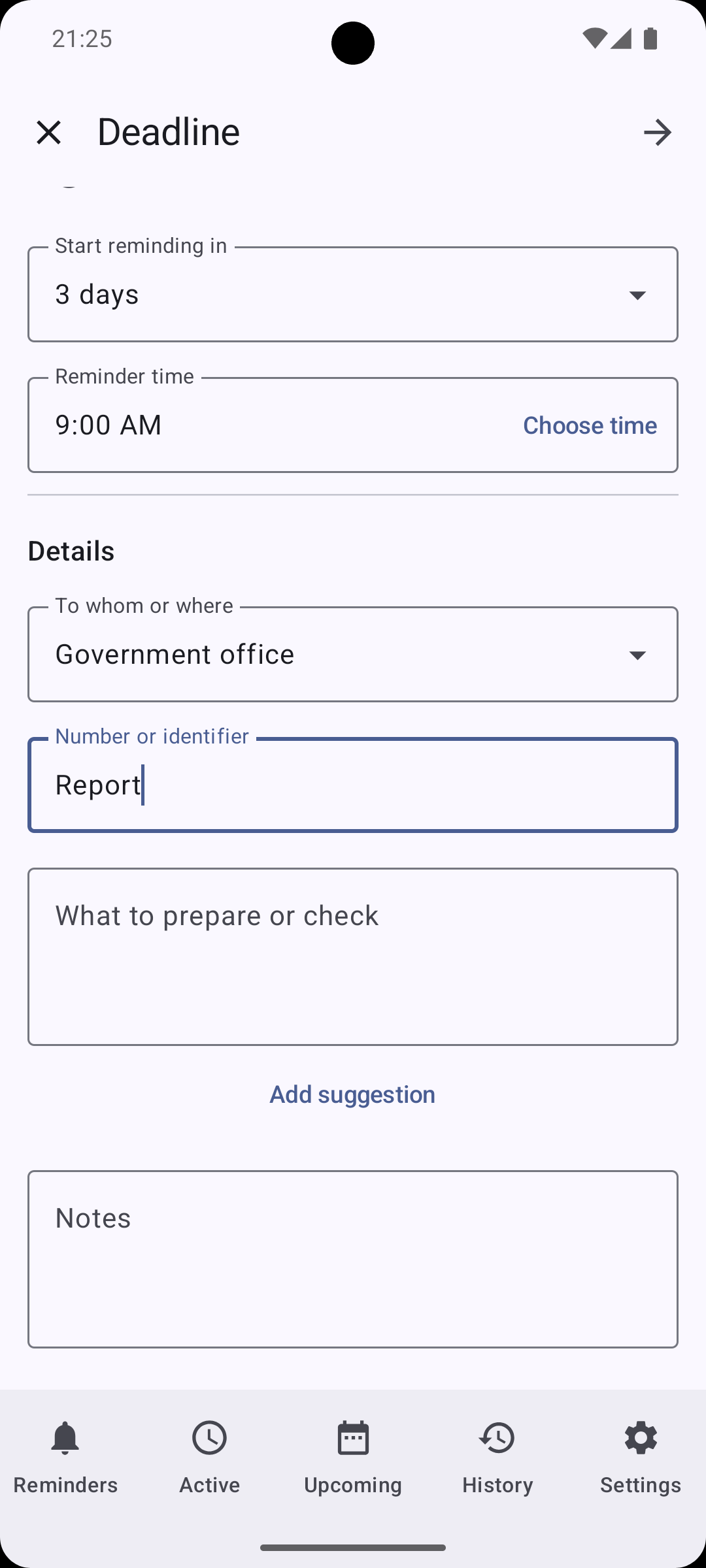
These guided scenarios collect structured context before opening the regular reminder review. Meeting keeps participants, format, place or online platform, and preparation notes. Deadline keeps the due date, reminder cadence, destination or reference, and preparation notes.
Choose how this reminder gets your attention
Alert mode controls how prominently this reminder tries to appear. The app-wide choice is in Settings. In an individual reminder, you can follow that choice or select a different mode just for this reminder.
Uses the mode currently selected in Settings when the alert starts. If you later change the app-wide mode, existing reminders with this option follow the new choice.
Shows a regular Android notification. Sound and vibration still follow their own reminder settings.
Tries to put the reminder on the full screen. If Android cannot do that, DKReminder leaves a regular notification instead.
High-importance reminders try full screen. Low- and medium-importance reminders use regular notifications.
What Android permissions change
- Notifications must be allowed. If notifications for DKReminder or its reminder channel are disabled, neither a regular notification nor the full-screen alert can be shown.
- Full-screen access affects only full-screen display. Without it, Full-screen alert and high-importance alerts in Based on importance mode fall back to a regular notification.
- Even with full-screen access, Android may show a prominent notification instead while you are actively using an unlocked phone.
- Exact-alarm access affects whether an alert can arrive at the precise scheduled time; it does not change the selected alert mode.
To review or restore Android access, open Notifications and Full-screen alerts.
Choose the recurrence type that matches the real rule
The recurrence type answers one question: how should DKReminder calculate the next scheduled time? Choose a calendar type when the weekday or date matters. Choose an interval when the fixed distance between alerts matters.
One alert at one chosen date and time.
A fixed interval beginning with the first trigger. These types can follow the original schedule or count from your response.
A calendar rule based on selected times, weekdays, a day of the month, or an annual date.
A daily sequence that begins only when you start it and then repeats inside its active window.
One-time reminders
Choose Once for a task that should alert at one specific date and time, such as calling a service desk tomorrow at 10:00.
- Select Once.
- Choose the date and time.
- Set importance and how the reminder should appear.
- Save and verify the scheduled time.
Every N minutes, hours, or days
These are three separate recurrence types with the same basic rule. Use them when the distance between alerts matters more than the calendar label.
Useful for a short repeated routine inside an active window.
Creates scheduled points at the chosen interval. Snoozing one alert does not move the main schedule.
Counts fixed day intervals from the first trigger.
Still means a 28-day interval. It is not the same as monthly recurrence.
- Choose Every N minutes, Every N hours, or Every N days.
- Enter the interval and the First trigger.
- Optionally set an active window and an end condition.
- Choose whether the next alert is anchored By schedule or, with Pro, From response time.
Daily, weekly, monthly, and yearly schedules
Daily
Daily runs at one or more selected times each calendar day. It is different from Every N days: Daily follows clock times on each eligible day, while Every N days counts a fixed number of days from its first trigger.
Weekly
Weekly runs every week on one or more selected weekdays at the chosen time. Use it when the weekday itself matters, such as every Monday and Thursday.
Every N weeks
Every N weeks skips a chosen number of weeks between active weeks, then runs on the selected weekdays. The week containing the Recurrence start sets which weeks belong to the pattern.
Monthly
Monthly scheduling follows calendar months, not a fixed number of days. You can define the date in two ways.
- On a specific day of the month. Enter the day number and alert time. If a shorter month does not have that day, the alert follows the app-wide rule or the rule selected for this reminder. Review the calendar-exception settings.
- From the end of the month · Pro. Choose one of two options:
- On the last day of the month. Enter the alert time.
- A number of days before the end of the month. Enter 1–27 days and a time. The reminder alerts once on the calculated date. For example, with “4 days before,” a month ending on August 31 produces August 27, while a month ending on September 30 produces September 26. These are not daily alerts throughout the last four days.
Do not start before sets the earliest allowed date. For example, if “4 days before” is selected and the boundary is August 31, the calculated August 27 date is earlier than that boundary. The first alert is therefore September 26.
Extra alerts after that date appear only when repeat alerts without a response are enabled separately.
Yearly
Yearly recurrence uses a calendar month and date. If you select February 29, choose the explicit non-leap-year rule: February 28, March 1, or leap years only.
Get advance reminders before one target date · Pro
Advance notice adds earlier alerts while keeping one main reminder date. It does not create a row of separate reminder rules: the title, checklist, past occurrence record, and target date still belong to one occurrence.
One early alert appears at the start of the advance window. The main alert still appears on the target date.
An alert appears on each calendar day at the main reminder time. On the target date it is the main alert, not a duplicate early alert.
Choose a cycle-safe number of days
At least one calendar day is required. DKReminder limits the advance window so it does not overlap the neighboring recurrence cycle and make two target occurrences ambiguous.
- One-time reminder: the first early alert must still be in the future.
- Every N days, by schedule: at most half the interval, rounded down. For every 4 days, the maximum is 2.
- Monthly: up to 14 days.
- Yearly: up to 182 days.
Advance notice is available for one-time reminders, fixed Every N days, monthly schedules, and yearly schedules. It is not offered where the next target cannot be known safely in advance, such as minute/hour intervals, weekly schedules, manual cycles, or schedules counted from your response.
Respond to an early alert
- Keep reminding me closes the current daily early alert and leaves the next planned alert.
- Skip remaining advance reminders stops only the rest of the current occurrence’s early series; the main alert remains.
- Got it closes a single early alert. Snooze returns that specific alert without moving the automatic schedule.
- Done completes the current occurrence. If the reminder repeats, its next target cycle remains on schedule.
By schedule or from response time
This choice is available for the Every N minutes, hours, and days interval types.
An alert is planned for 10:00 and the interval is two hours. Even if you respond at 10:37, the next scheduled point remains 12:00.
You respond at 10:37, so the next alert is planned for 12:37. DKReminder waits for the response before advancing this chain.
Manual daily cycle · Pro
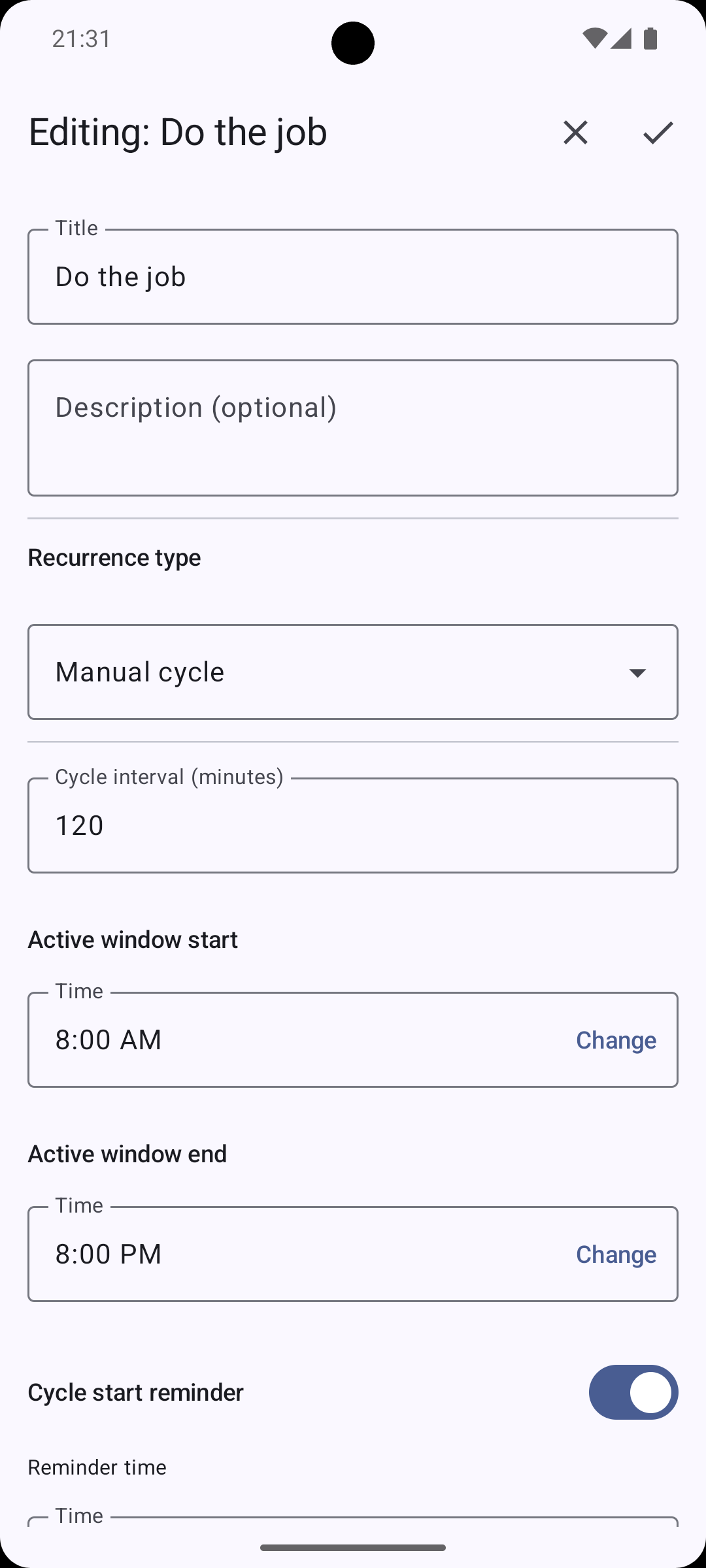
Use a manual daily cycle when the day's start changes and you want later alerts to follow that real start. The cycle never starts automatically.
- Choose Manual daily cycle.
- Set the interval and inclusive active-window boundaries.
- Optionally enable a helper reminder that asks you to start the cycle.
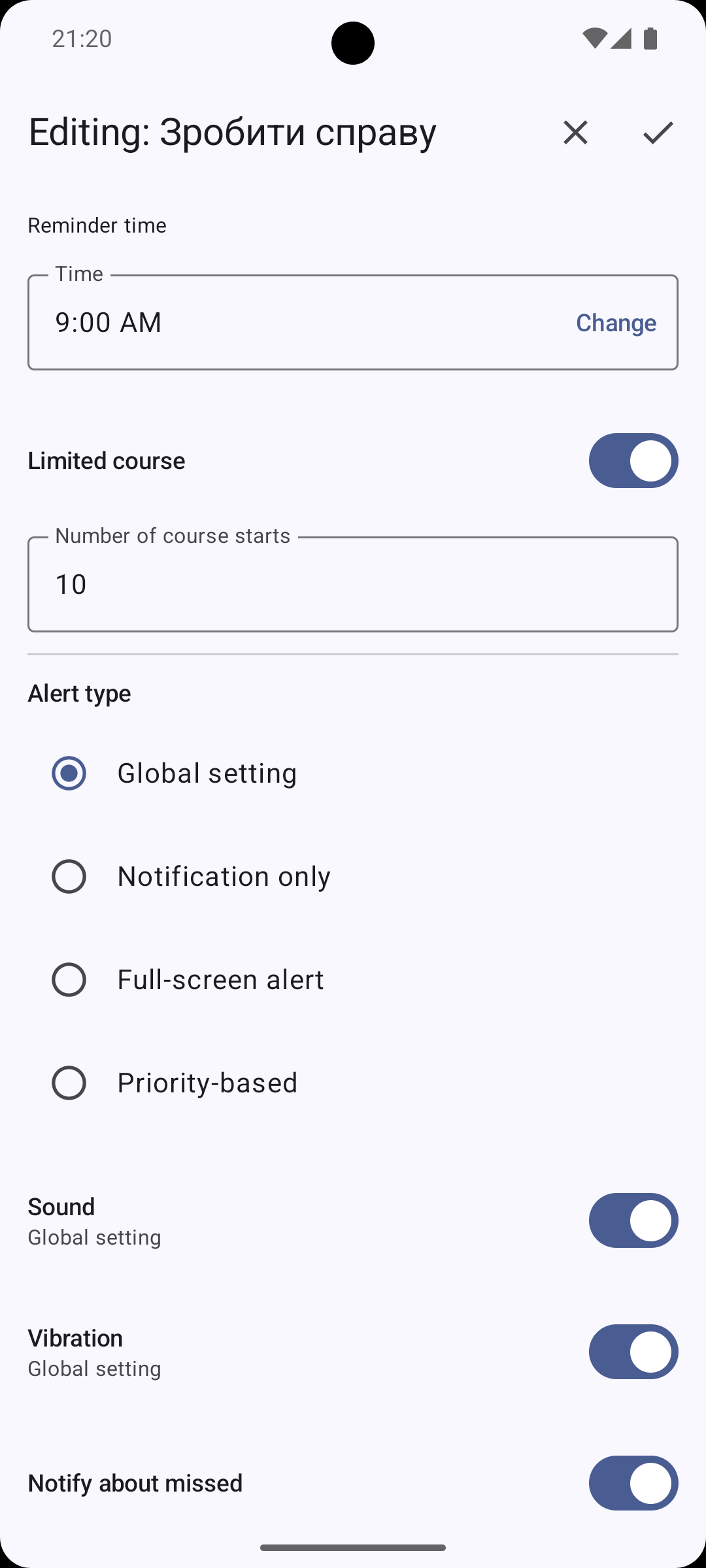
- If the course is limited, set how many manual day starts it includes.
- On each day, open the reminder and choose Start when you are ready.
Example: start at 09:30 with a two-hour interval and an active window ending at 18:00. DKReminder plans 11:30, 13:30, 15:30, and 17:30. It does not add a 19:30 alert.
Active window and calendar exceptions
The Active window limits when new scheduled alerts may be created. Its boundaries are inclusive, and it can cross midnight, such as 22:00–06:00.
- A planned point outside the window is not simply moved to the window start; DKReminder finds the next valid scheduled point.
- For minute/hour intervals and a manual cycle, an invalid first calculated alert blocks saving or starting until you change the time or window.
- An alert that already exists may be snoozed beyond the active window because snooze acts on that alert, not on the main schedule.
- Short-month and February 29 policies appear only for the calendar edge case that needs them.
End conditions, expected result, and common checks
Repeating schedules can continue until you stop them, end after a number of scheduled alerts, or stop at a date. A manual daily cycle uses a course limit instead of the generic end condition, and a one-time reminder needs none.
If the schedule looks wrong
- Check whether you selected an interval type or a calendar type. Every 28 days is not monthly.
- Check the meaning of the start field: First trigger, Recurrence start, or Do not start before.
- For Every N weeks, verify the week that establishes the interval and the selected weekdays.
- For a 29th, 30th, 31st, or February 29 schedule, review the calendar exception.
- Check whether the active window excludes the expected point.
- For From response time, remember that the next alert is calculated only after you respond to the current one.
Related guides
Still need help?
Email reminder@dvkworks.com and describe the recurrence type, the first trigger, and the result you expected.