Getting started
Help your phone deliver reminders reliably.
DKReminder can save a reminder even when Android access is missing. The permission status in Settings shows what still needs your attention.
What happens on first launch
The short introduction explains the app before you create anything. It does not grant Android permissions by itself.
- Read the introduction, or skip the explanatory screens.
- Create your first reminder. DKReminder can guide you through the setup step by step or show all available settings at once.
- If notification access is missing, DKReminder explains why it matters. Your action then opens the Android permission prompt.
- If exact-alarm access is missing, your action opens the relevant Android settings screen.
- Grant the access, or return to DKReminder if you want to decide later. The app keeps the permission status visible in Settings.
Reminder permissions
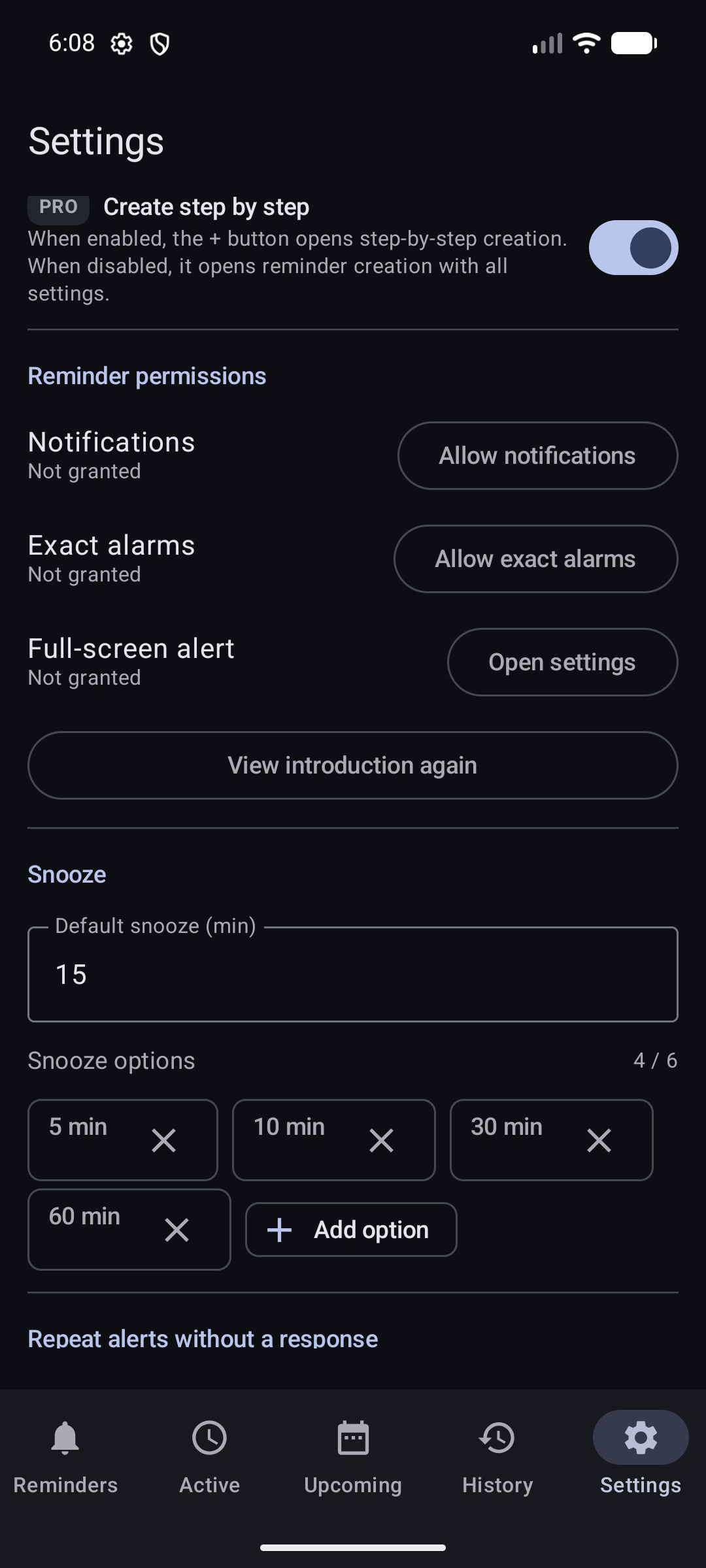
Open Settings → Reminder permissions at any time. Each row shows the current status and the action that opens the correct Android prompt or system screen.
Let Android show DKReminder alerts and notification actions.
Let Android keep time-sensitive alerts close to the selected time.
Lets eligible alerts use full-screen presentation when Android allows it.
Notifications
Notification access lets the phone display an alert, its sound or vibration, and actions such as Done or Snooze.
- In DKReminder, open Settings → Reminder permissions.
- Choose Allow notifications.
- Confirm the Android permission prompt for DKReminder.
- Return to the app and check that the status is now granted.
Exact alarms
Android may delay ordinary background work to save battery. Exact-alarm access lets DKReminder schedule time-sensitive alerts more precisely.
- In DKReminder, open Settings → Reminder permissions.
- Choose Allow exact alarms.
- On the Android screen, allow DKReminder to schedule exact alarms.
- Leave unrelated settings unchanged and return to DKReminder.
Full-screen access
A full-screen alert lets an eligible reminder appear over the lock screen when Android considers that presentation appropriate.
- In DKReminder, open Settings → Reminder permissions.
- Choose Open settings beside full-screen access.
- On the Android screen, change only the full-screen notification access for DKReminder.
- Return to the app and review the updated status.
- On a locked phone, a reminder configured for full screen may open full screen.
- While you actively use an unlocked phone, Android normally shows a prominent notification instead.
- If full-screen presentation is unavailable, DKReminder falls back to a regular notification.
- Notifications only does not mean silent; sound and vibration are configured separately.
Background work and device limits
DKReminder schedules reminders so they can appear after you close the app and restores scheduling after a device restart. Android and some device manufacturers can still apply battery-saving or background restrictions that delay alerts.
If alerts become unreliable after a system update or a battery-saving change, first confirm notification and exact-alarm access. Then review your device's battery or background settings for DKReminder. Setting names differ by manufacturer, so change only the option that clearly limits DKReminder's background activity.
If an alert does not appear
- Open DKReminder and confirm the reminder is saved and not paused, completed, or in Trash.
- Check the selected date, time, time zone, recurrence rule, and active window.
- Open Settings → Reminder permissions and confirm notifications are granted.
- Confirm exact alarms are allowed if timing matters.
- If the reminder uses full screen, remember that Android may show a prominent notification instead.
- Review the phone's battery/background restriction for DKReminder.
- Create a one-time test reminder a few minutes ahead. Keep the original reminder unchanged while you test.
Related guides
Still need help?
Email reminder@dvkworks.com and include your phone model, Android version, and what you have already checked.